
This guide explains how to add Stripe as a web payment provider and report web-based purchases to the GoMarketMe platform.
https://gomarketme.co > Get Started.
When asked for Apple In-App Purchases details, click “Skip for now”.
Provide:
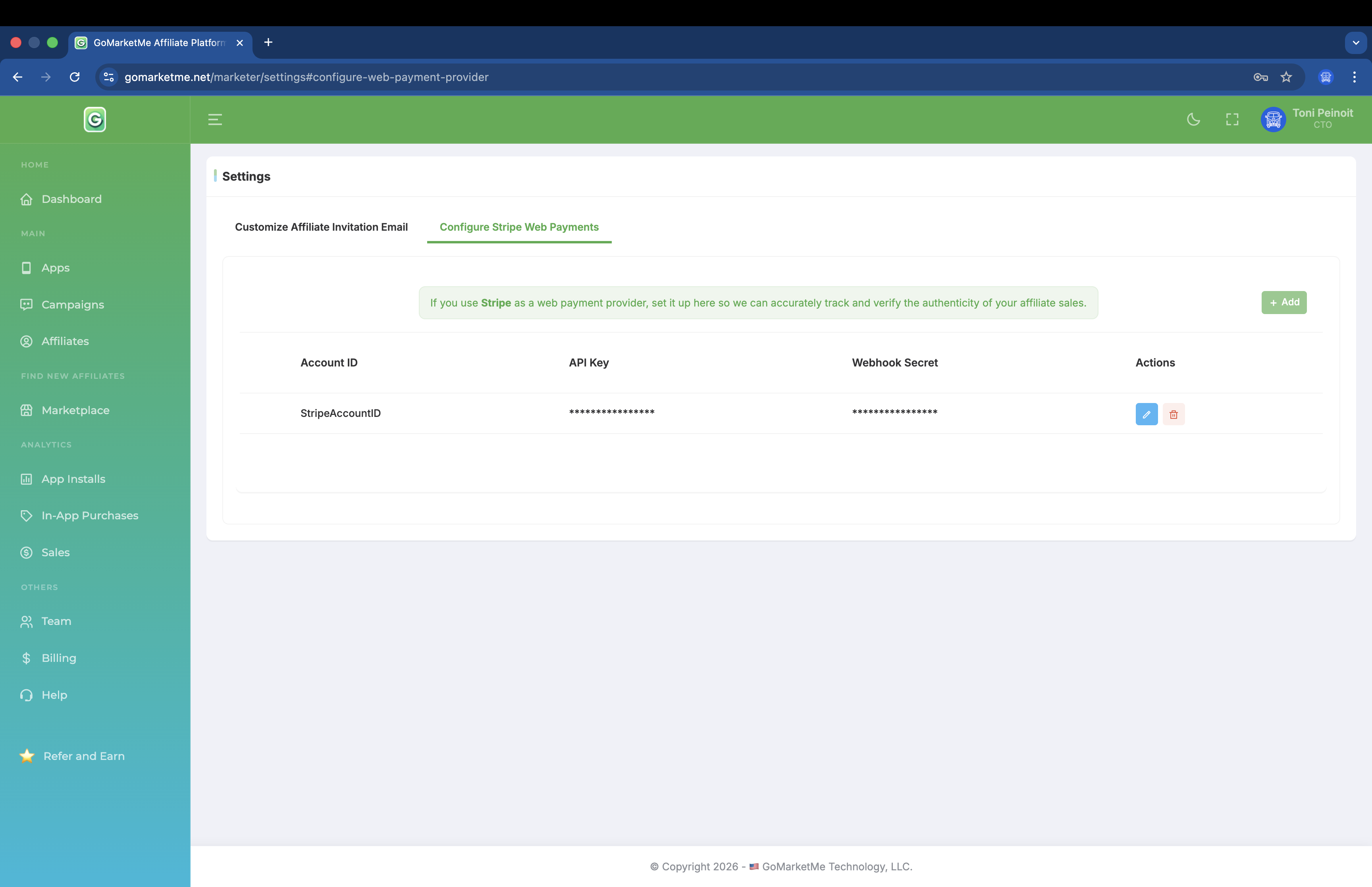
(e.g. with Flutter)
GoMarketMeAffiliateMarketingData? goMarketMe;
Future<void> main() async {
WidgetsFlutterBinding.ensureInitialized();
final goMarketMeSDK = GoMarketMe();
goMarketMeSDK.initialize(“[API_KEY]”).then((_) {
// Once initialization completes, you can access the affiliate marketing data:
goMarketMe = goMarketMeSDK.affiliateMarketingData;
var deviceId = goMarketMe?.deviceId;
debugPrint(“Device ID: $deviceId“);
});
runApp(const MyApp());
}
See https://docs.stripe.com/api/metadata
and https://docs.stripe.com/api/checkout/sessions/retrieve for Stripe.
Method: POST
URL: https://api.gomarketme.net/v1/web/event
Headers (required):
Content-Type | application/json |
x-event-type | web-purchase |
x-api-key | [API_KEY] (GoMarketMe API KEY) |
Body (all fields required):
device_id | As returned by the GoMarketMe SDK |
external_purchase_id | Unique Identifier of the Purchase (as returned by the provider, e.g., Stripe) |
currency_code | ISO 4217 (Uppercase, 3 characters) |
sale_price | Sales price of the purchase (decimal) |
product_name | Name of the product that was purchased. Used in Marketer and Affiliate Reporting. |
Sample Request:
curl -X POST “https://api.gomarketme.net/v1/web/event” \
-H “Content-Type: application/json” \
-H “x-event-type: web-purchase” \
-H “x-api-key: 123456789” \
-d ‘{
“device_id”: “123”,
“external_purchase_id”: “123”,
“currency_code”: “USD”,
“sale_price”: 0.99,
“product_name”: “123”
}’
Once the affiliate sale is posted to GoMarketMe:
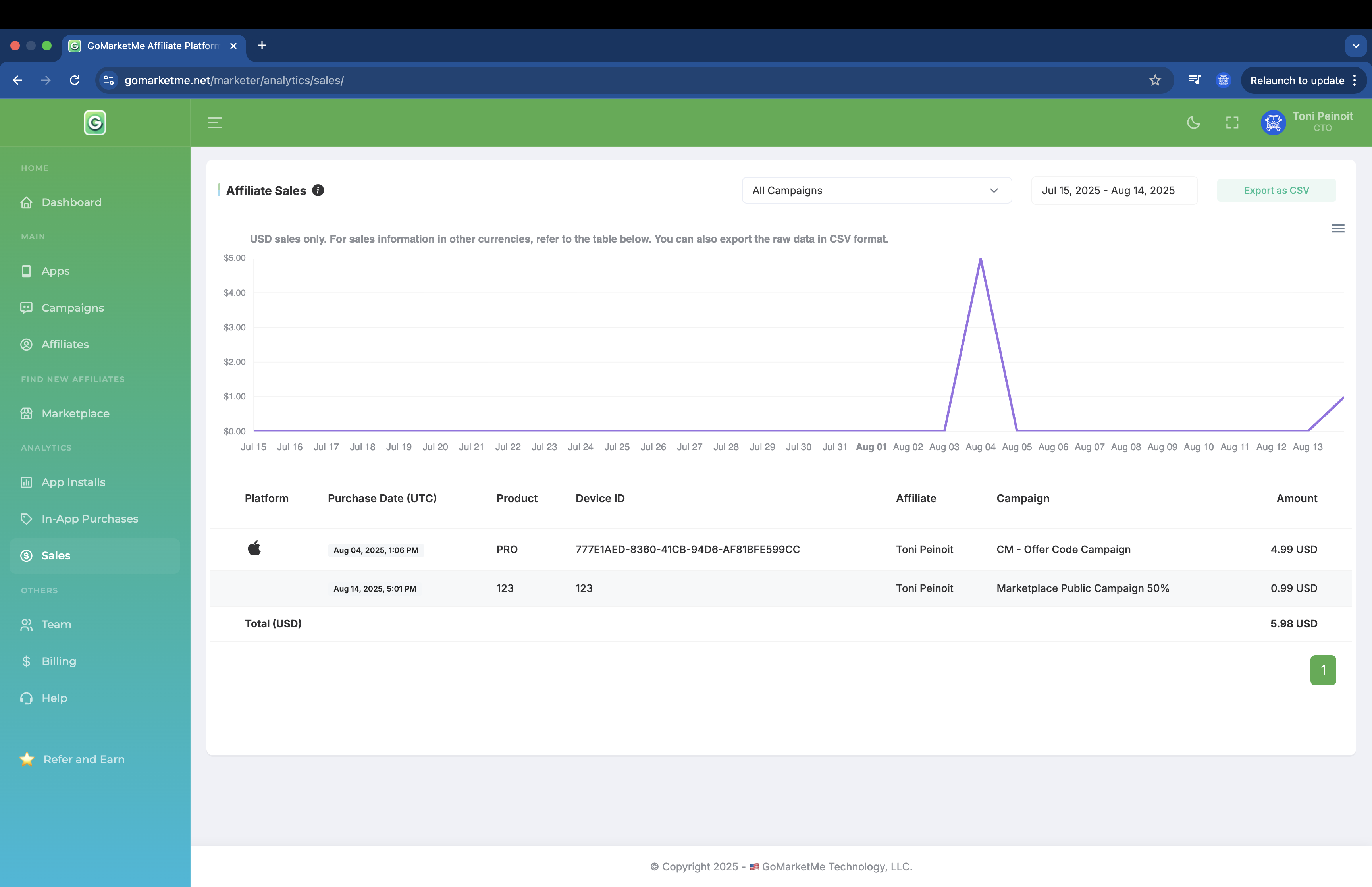
Navigate to Sales to see the purchase attributed.
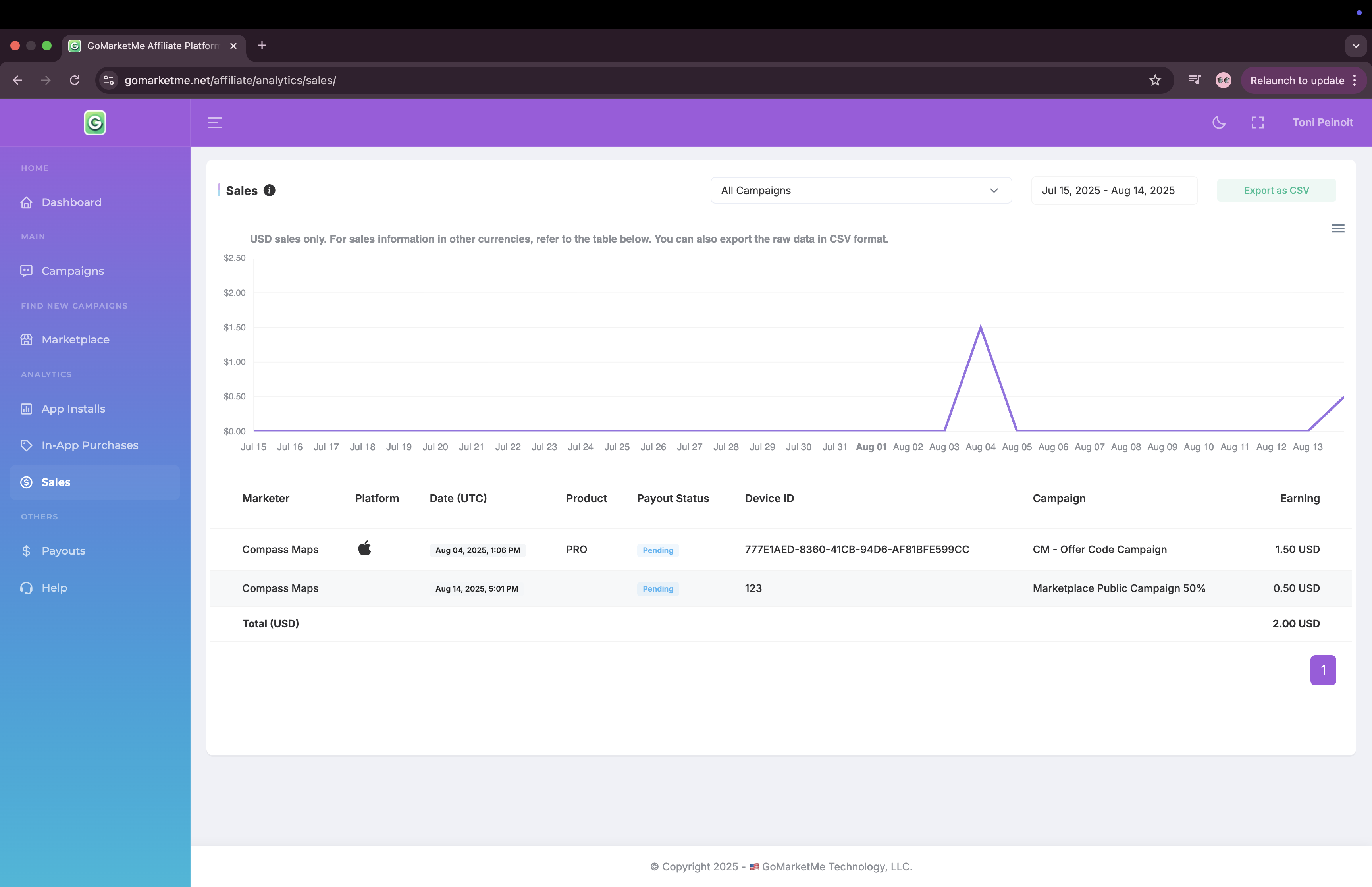
If you have any questions or need assistance, please reach out to integrations@gomarketme.co. We’re always happy to help!