Referral Codes for Mobile Apps
GoMarketMe Referral Codes give affiliates an easy-to-remember way to promote your app when sharing a link is not practical. They are ideal for conversations, podcasts, videos, livestreams, events, presentations, and print.
Affiliate links are optional. Referral codes work even when no affiliate link is used; the user can enter the code directly in your app.
When an affiliate link is used, the matching referral code is automatically pre-populated and applied, so the referred user does not need to enter it manually.
iOS and Android • Unlimited referral codes
Referral codes are supported on both iOS and Android, with no limit on the number of codes you can create.
Use GoMarketMe’s UI—or your own
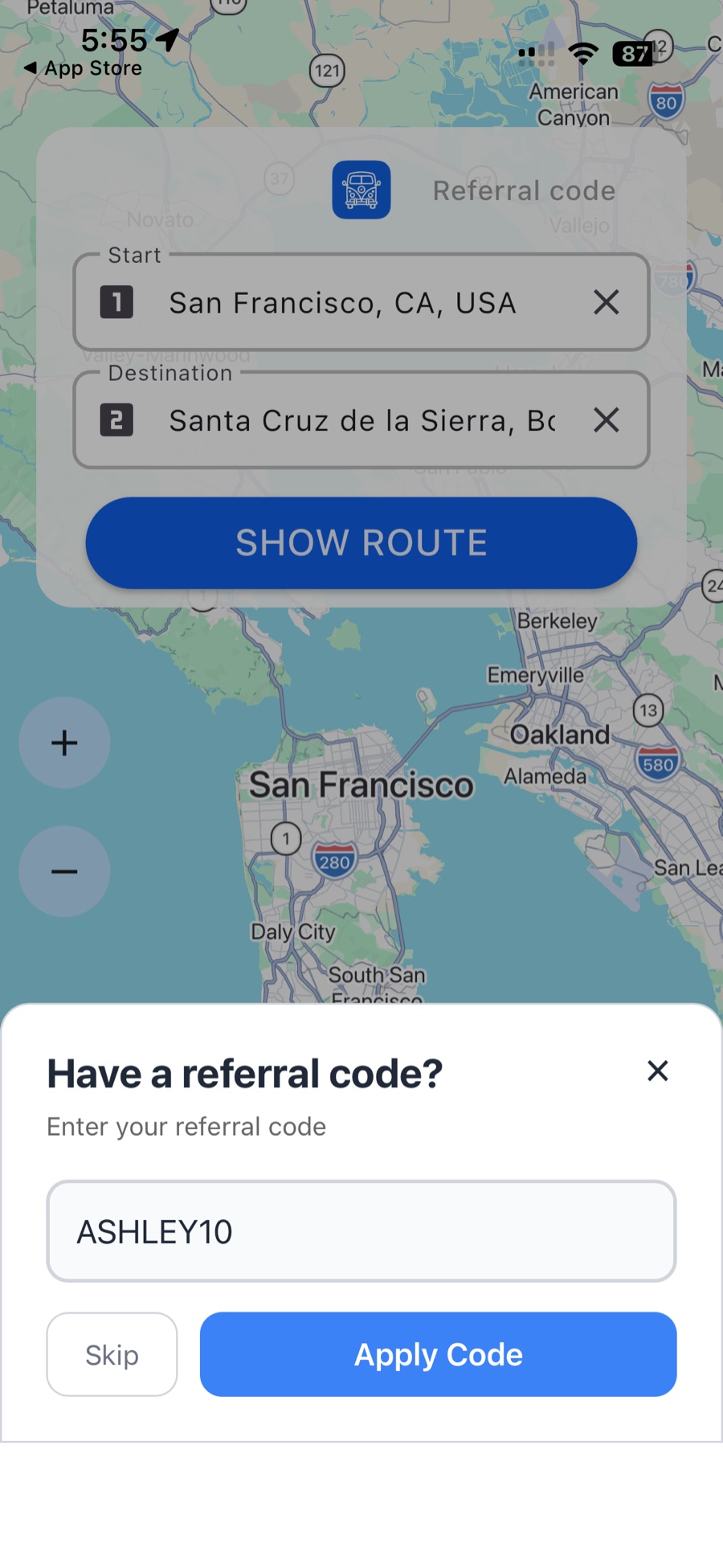
For the quickest setup, call showReferralCodeTrigger() to display GoMarketMe’s customizable referral-code trigger and sheet. If you do not want to use the built-in UI, collect the code in your own interface and pass it to the GoMarketMe SDK programmatically using the referral-code API for your platform.
Different from offer codes: “Private Campaigns with Offer Codes” are iOS-only and support a maximum of 10 affiliates. Those restrictions do not apply to referral codes.
showReferralCodeTrigger() during onboarding, or connect your own code-entry interface to the SDK.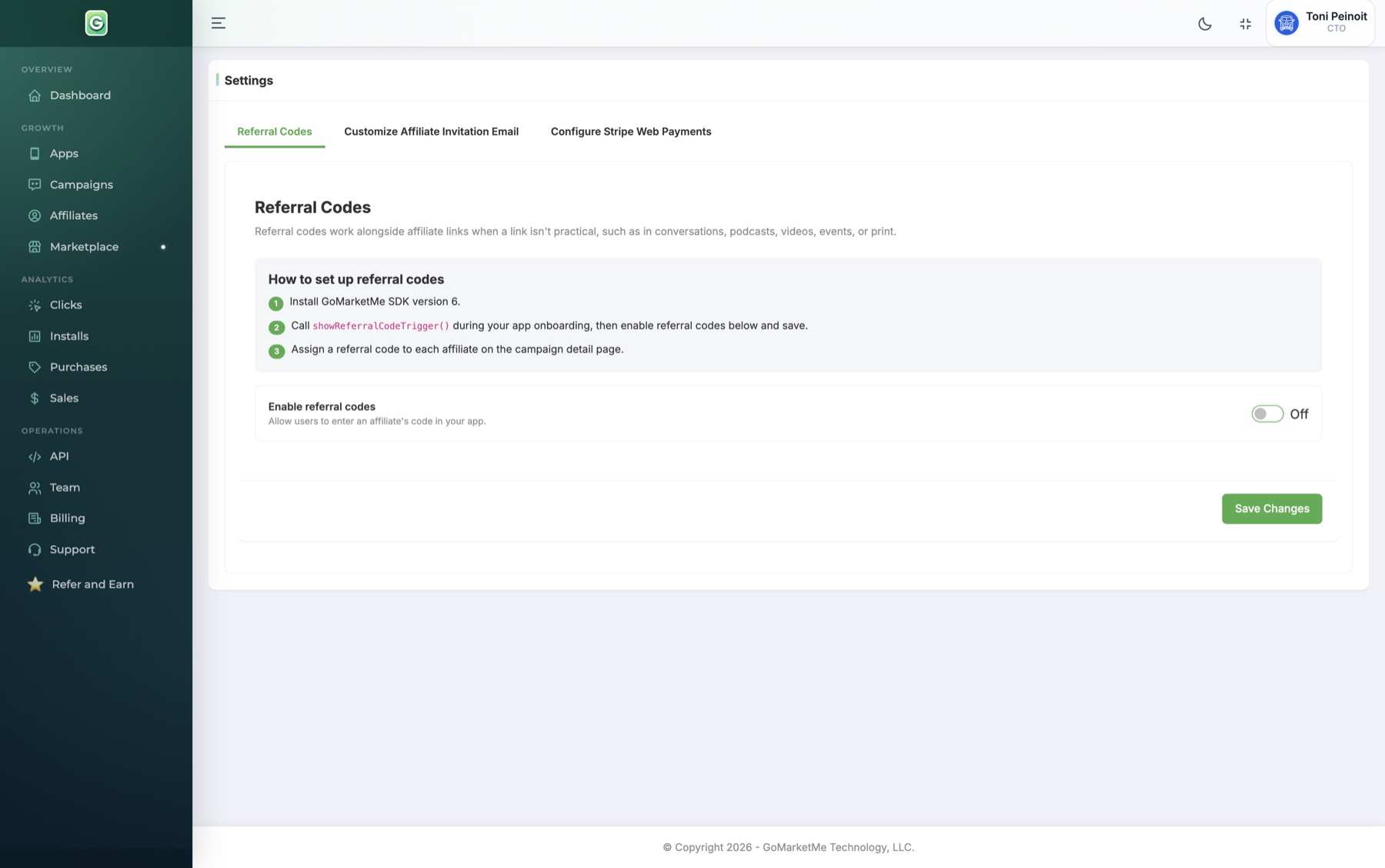
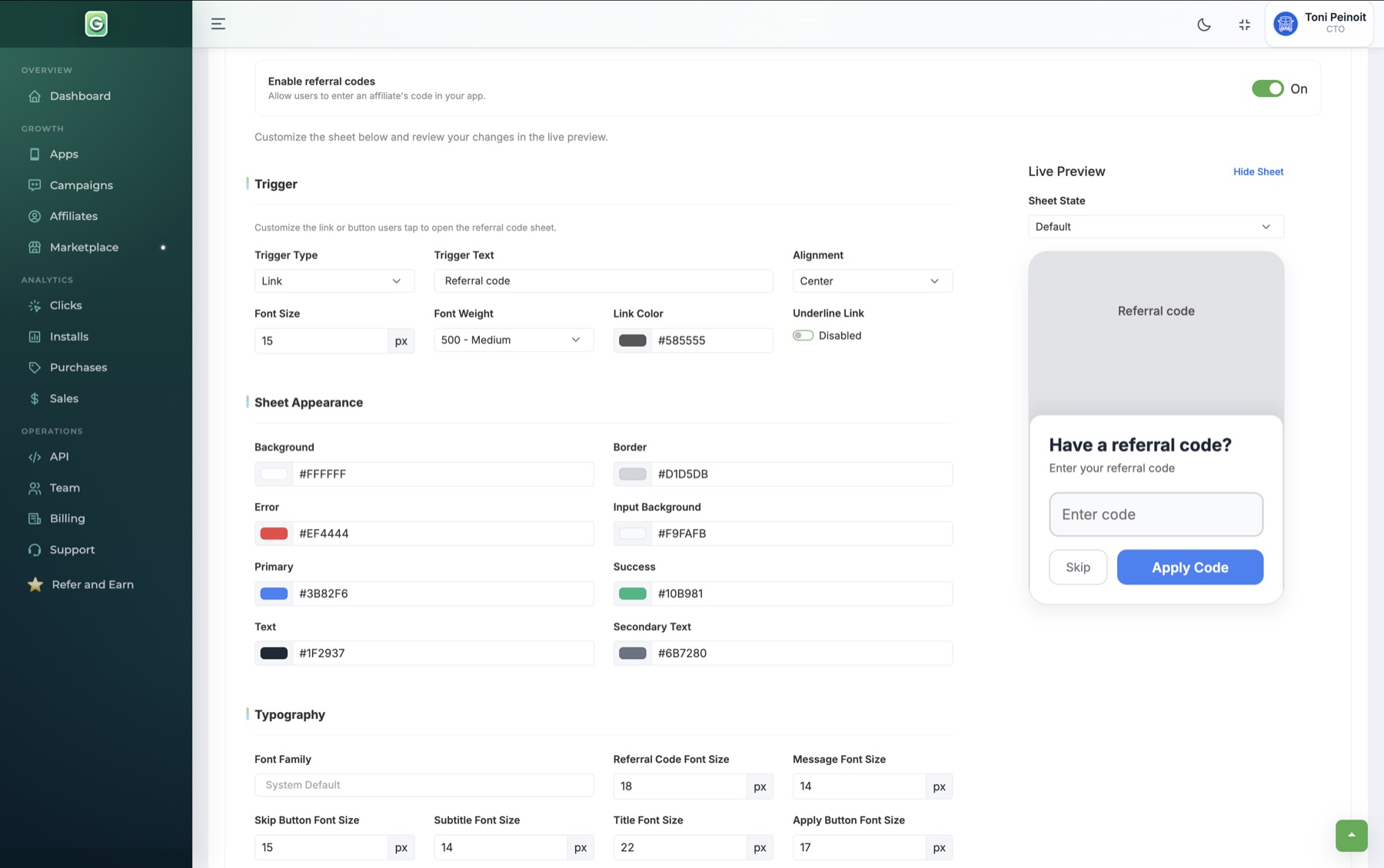
With GoMarketMe’s built-in UI, you control how the referral-code experience looks in your app without building the interface yourself. Configure the trigger as a link or button, then customize its text, alignment, typography, colors, border, and spacing.
The live preview shows the complete referral-code sheet, including the title, message, code field, Skip button, Apply Code button, and success or error states.
Enable and customize Referral Codes in GoMarketMe →
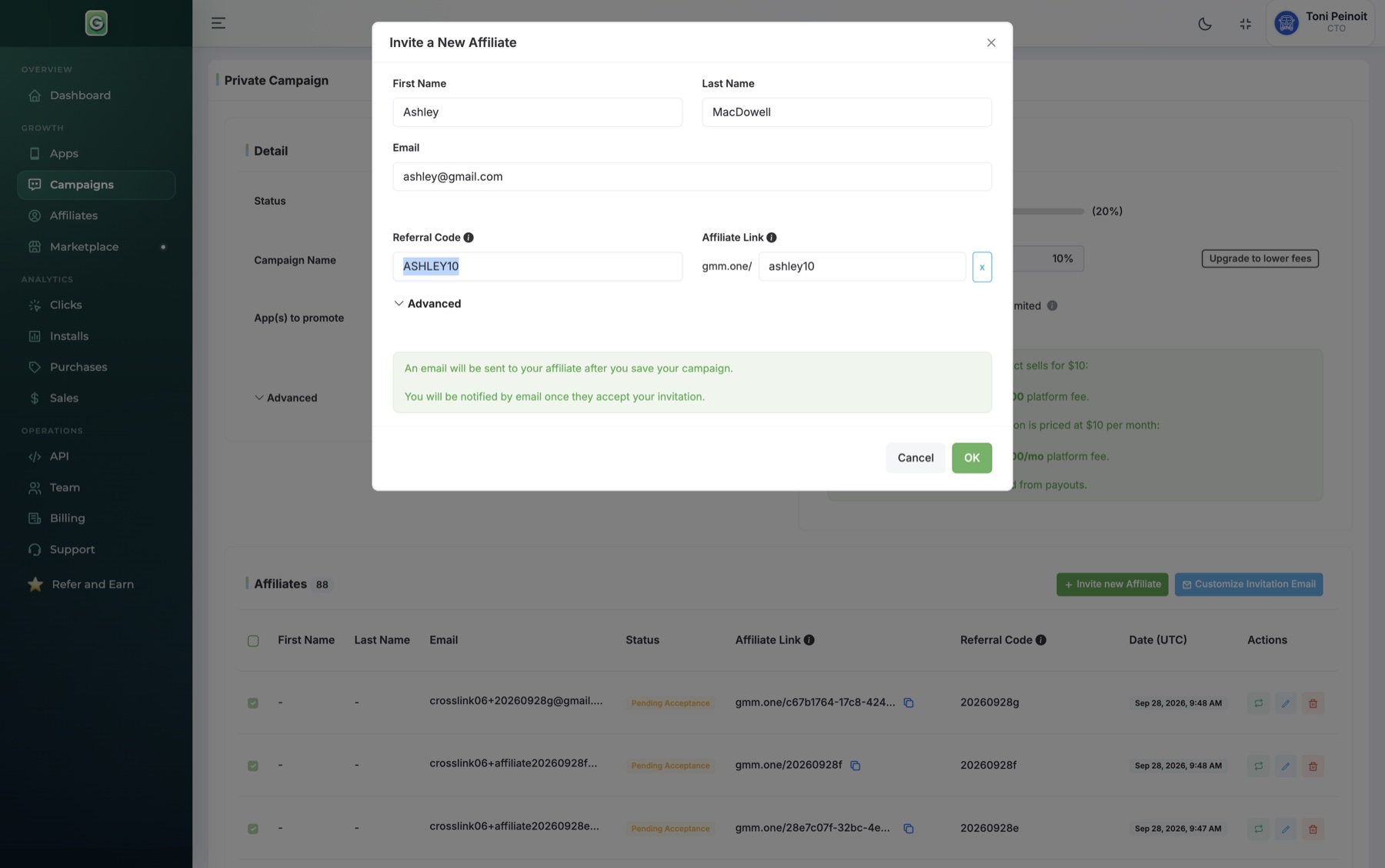
Referral codes are available for Public and Private campaigns, whether existing or new. Enter a code when inviting a new affiliate or editing an existing affiliate. Codes are optional, but every code must be unique across all campaigns in your GoMarketMe account.
Choose codes that are short, memorable, and easy to spell. A creator name, brand name, or simple campaign phrase usually works well.
If you use the built-in UI, the SDK displays the trigger and referral-code sheet with the appearance you configured in GoMarketMe. A user who did not arrive through an affiliate link can enter the code they received and tap Apply Code.
When an affiliate link is used, the matching referral code is automatically pre-populated and applied, so the referred user does not need to enter it. If a user does not have a code, they can skip the step and continue.